Create a discount
To create a discount in Dashboard:
- Go to Dashboard → Settings → Checkout → Discounts.
- Click New discount.
- Fill in the builder fields (described in the sections below).
- Confirm the rule under Rule preview.
- Click Create discount.
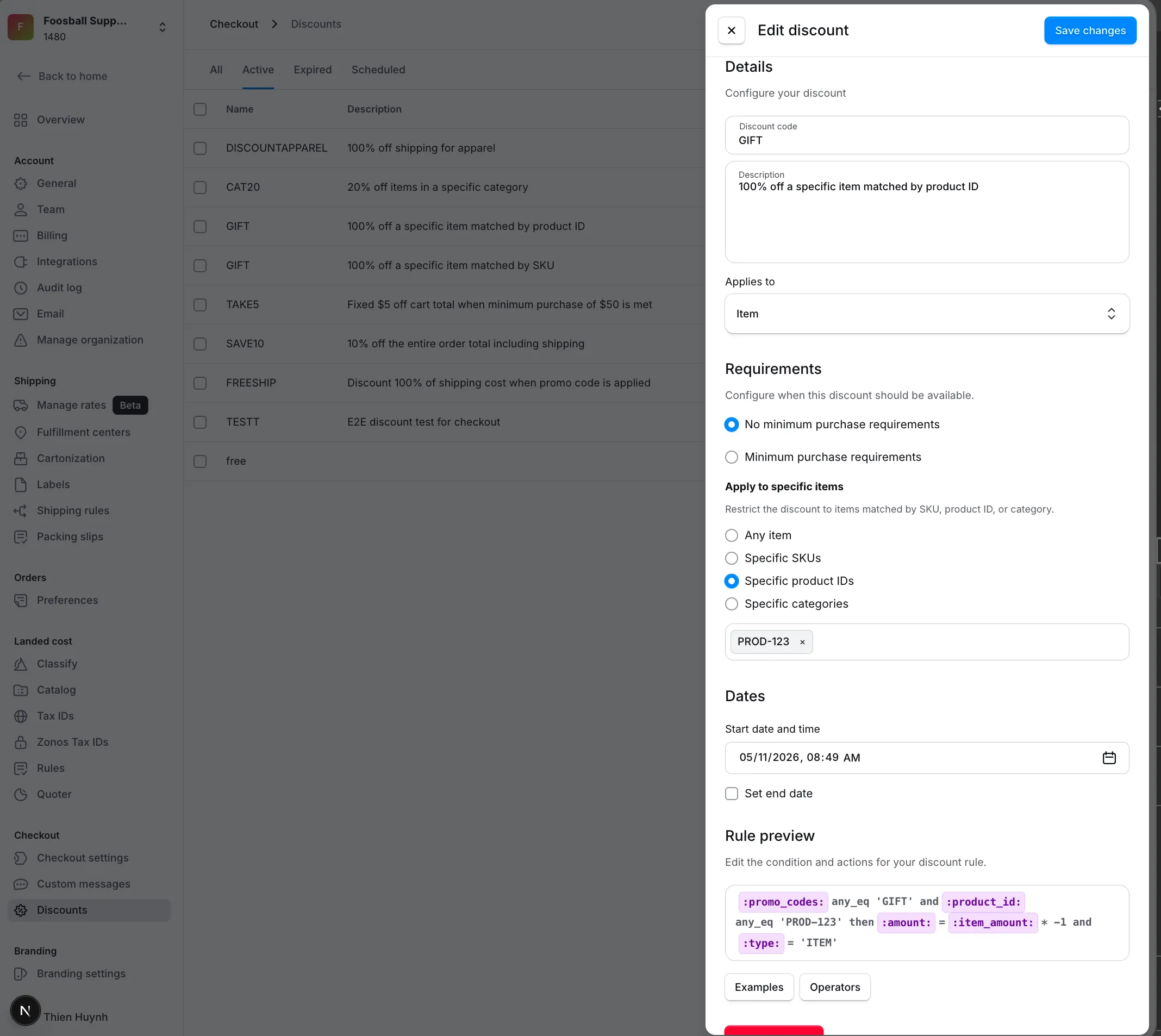
Details
| Field↕ | What it does↕ |
|---|---|
| Discount code | Required. The code shoppers type at checkout (e.g. SAVE10). Spaces and apostrophes are stripped so the value can be safely embedded in the rule. |
| Description | Free-form notes for your team. Not shown to shoppers. |
| Start / end date | When the discount becomes active and when it stops. Leave the end date blank to keep the discount active indefinitely; set it to a past date to deactivate. |
Applies to
The Applies to dropdown controls which part of the order the discount adjusts. Choose one of:
- Order total — applied to the full landed cost after items and shipping.
- Cart total — applied to the items subtotal only.
- Shipping total — applied to the shipping cost only.
- Item — applied to a specific item or category of items.
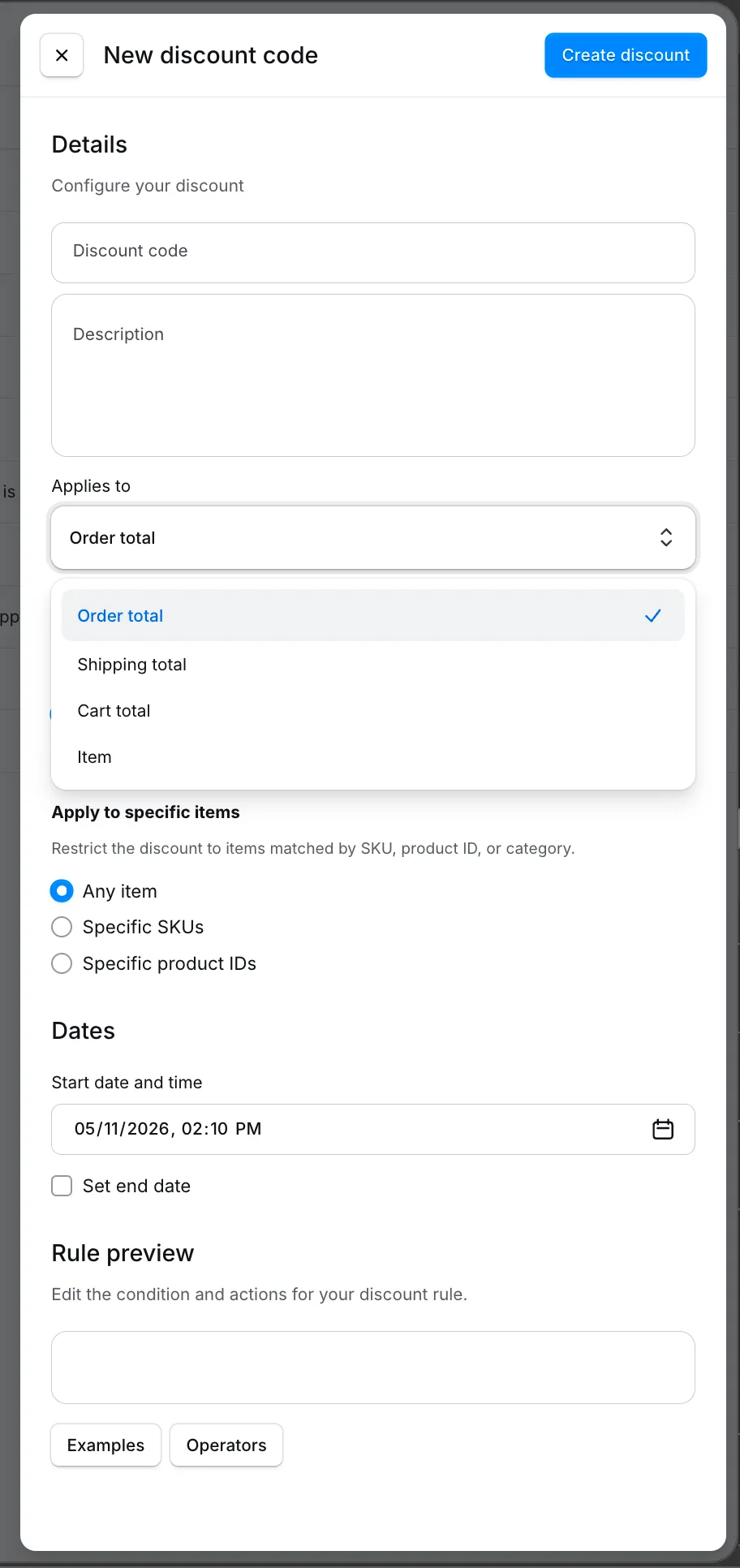
When you're editing an existing discount, Applies to is restricted to options compatible with the discount's original context. To switch between order-level and item-level discounts, create a new discount instead.
Requirements
Use Requirements to set thresholds that must be met before the discount applies.
- No minimum purchase requirements — the discount always applies as long as the code and dates match.
- Minimum purchase requirements — set a minimum cart amount and currency. The discount only applies when the shopper's items total is at or above this amount.
Apply to specific items
When Applies to is Item, you can also restrict the discount to specific products. Choose one of:
- Any item — the discount applies to every item in the cart.
- Specific SKUs — enter one or more SKUs. Only items with a matching SKU receive the discount.
- Specific product IDs — enter one or more product IDs. Only matching products receive the discount.
- Specific categories — enter one or more item categories. Only items in those categories receive the discount. (Only available when Applies to is Item.)
Each value is committed when you press Enter. Spaces inside a value are allowed (e.g.
Holiday Gifts); empty entries are filtered out. Item matching uses exact equality, soPROD-123will not matchPROD-1234.
Rule preview
The Rule preview shows the underlying rule that gets saved. The builder generates it for you whenever you change a field, but you can also edit the preview directly to express more advanced conditions (for example, combining multiple or branches, referencing variables the builder doesn't expose, or fine-tuning operators).
A rule has two halves separated by then:
:promo_codes: any_eq 'GIFT' and :product_id: any_eq 'PROD-123'
  then :amount: = :item_amount: * -1 and :type: = 'ITEM'
- The condition (before
then) decides when the rule fires. - The actions (after
then) describe what the discount does and where it applies —:type:is always required and indicates the context ('ORDER_TOTAL','CART_TOTAL','SHIPPING', or'ITEM').
Every discount must include at least one action besides :type: — typically an :amount: action that sets the discount value.
When you edit the preview manually, the builder fields stay in sync with anything it can recognize. Fields the builder doesn't recognize remain as you wrote them.
Examples
Click Examples at the bottom of the rule preview to open a list of ready-to-use discount rules. Click Use this example to load the example into the builder and overwrite the current draft.
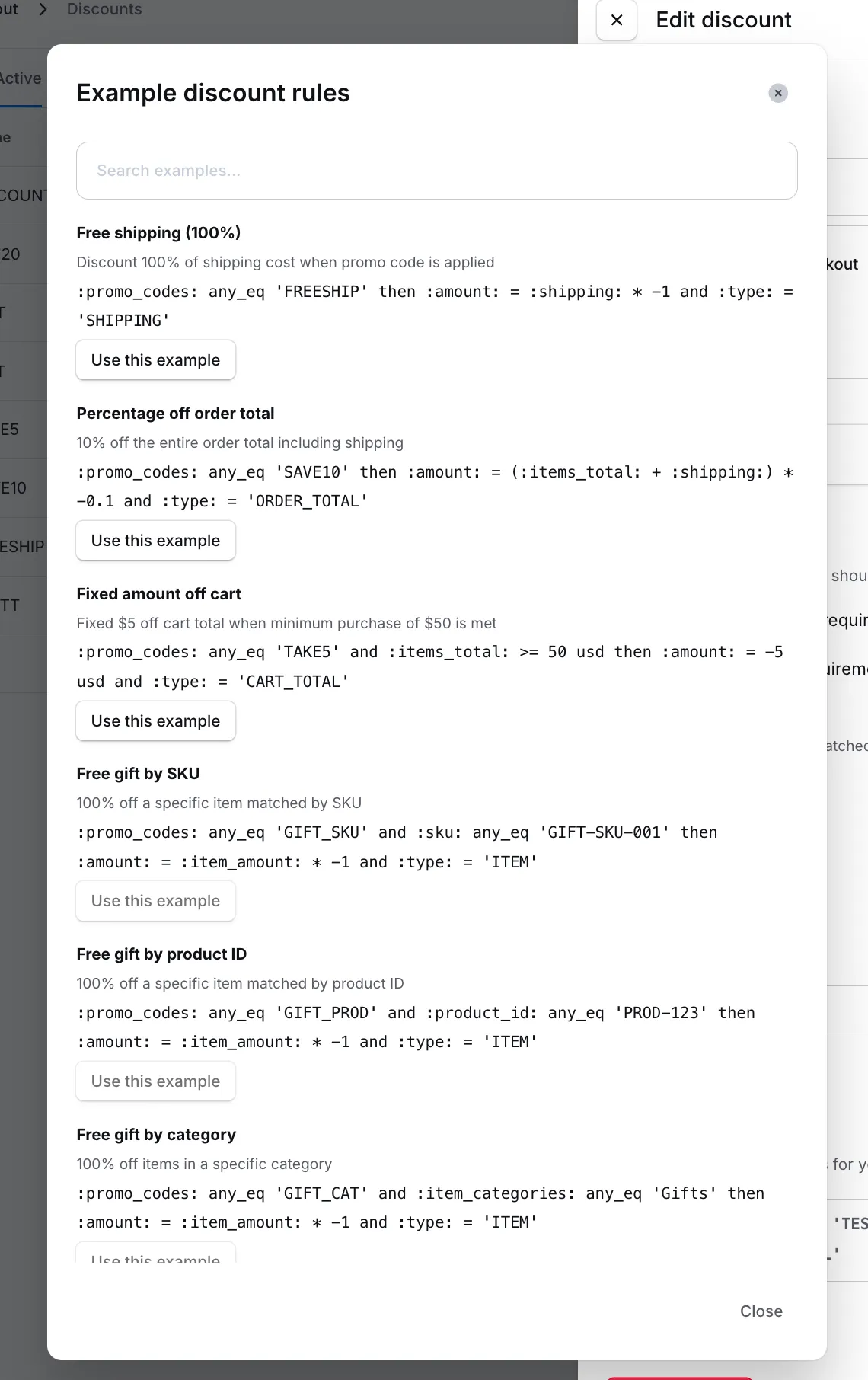
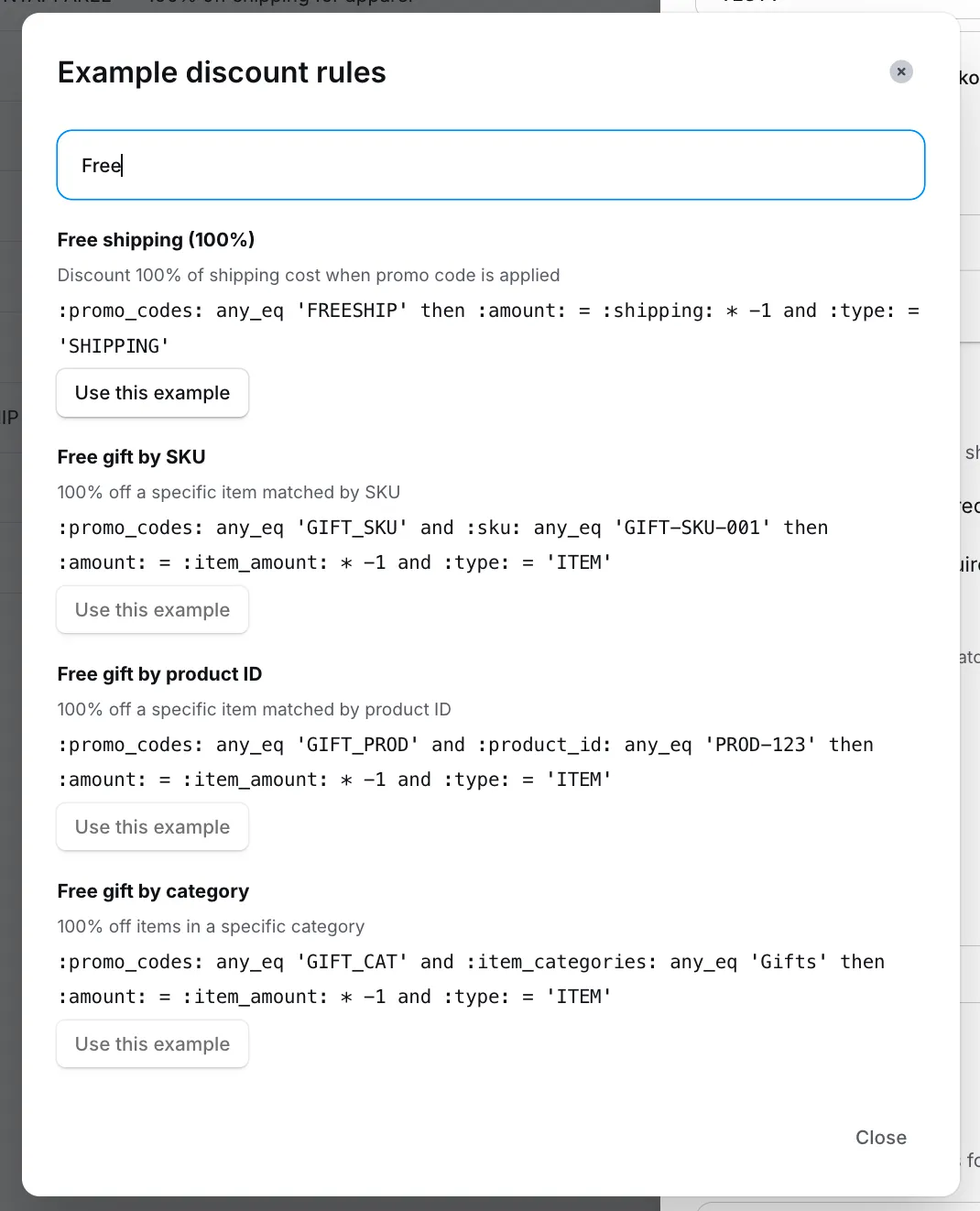
Use the search field to filter examples — for instance, type free to narrow to free-shipping and free-gift templates.
Operators
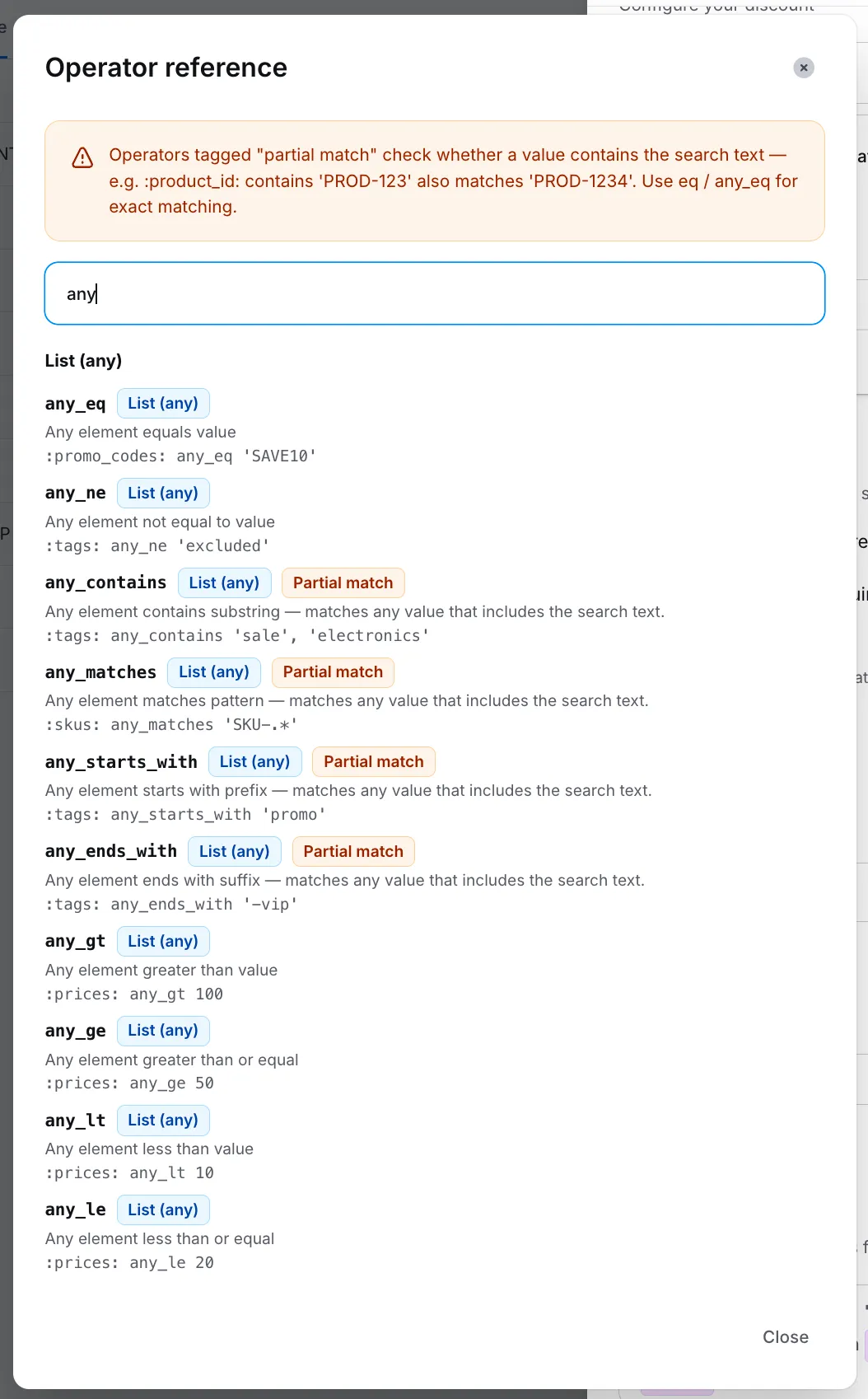
Click Operators to open a searchable reference of every operator the rule language supports — arithmetic (+, -, *, /, %), logical (and, or), comparison (==, !=, >, >=, <, <=), and list (any_eq, any_contains, any_starts_with, etc.).
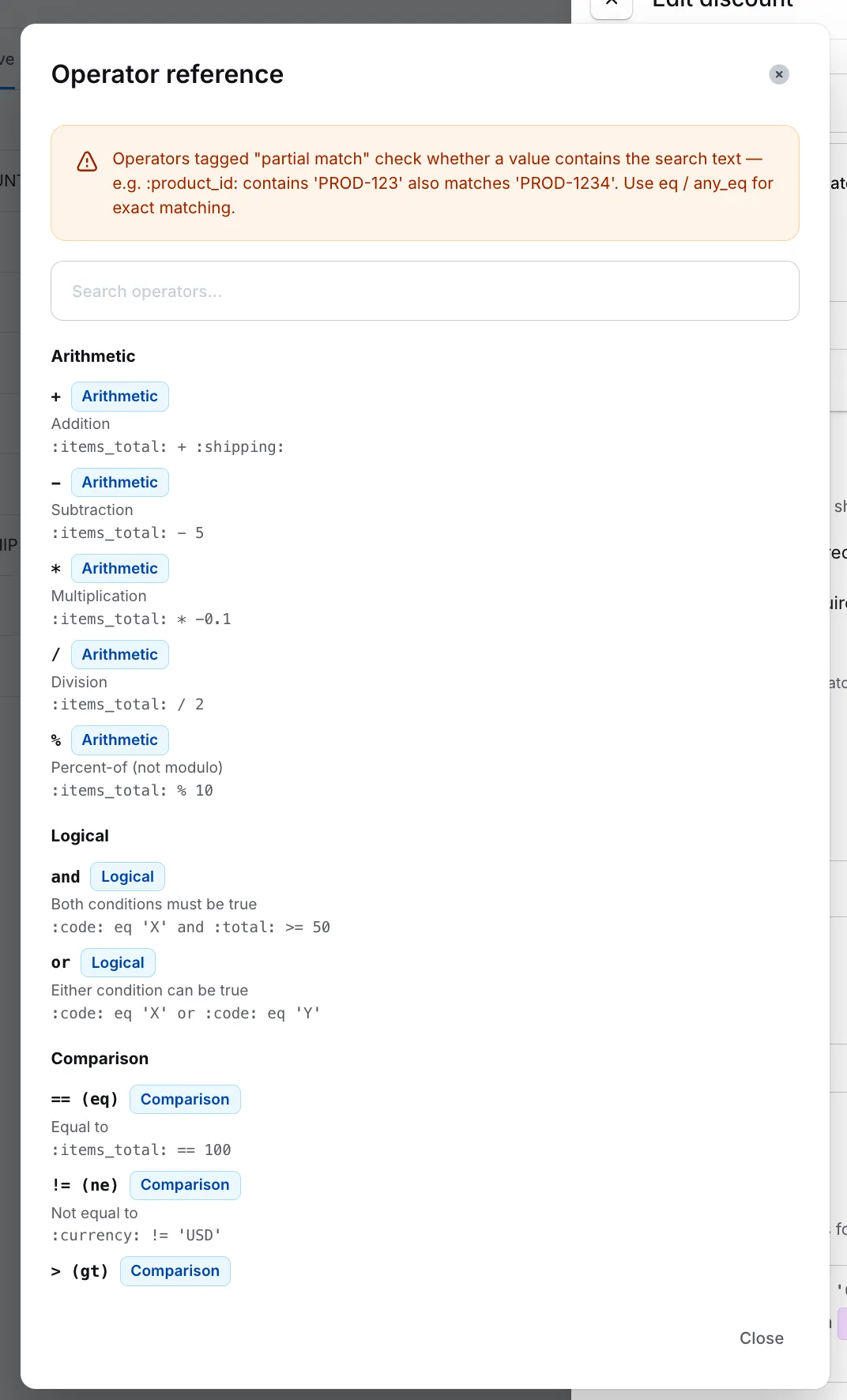
Operators tagged Partial match check whether a value contains the search text — for example, :product_id: any_contains 'PROD-123' also matches 'PROD-1234'. For exact matching, use eq / any_eq instead. The builder always emits exact-match operators; partial-match operators are only used if you write them in the preview yourself.
Expire a discount
To stop an existing discount from applying, you have two options:
Schedule it to expire
- Go to Dashboard → Settings → Checkout → Discounts.
- Select the discount you want to expire.
- Set the end date to a date in the past (or any future date you want it to stop).
- Click Save changes.
Expire it immediately
- Go to Dashboard → Settings → Checkout → Discounts.
- Select the discount you want to expire.
- Scroll to the bottom and click Expire discount.
Influencer and free product shipments
Zonos does not support using 100% off discount codes to ship free products to influencers or other recipients.
Even with a 100% discount applied, the goods still have real commercial value in the eyes of customs. A business sending product to an influencer is a commercial shipment — not a gift under international trade law. Declaring a $0 value on goods that clearly have value is likely to result in packages being flagged and held at customs, with duties and taxes assessed on the full value anyway. This creates a worse experience for both the merchant and the recipient than not using Zonos at all.
If you need to send free product to influencers or other recipients, process and ship those orders outside of Zonos. This keeps your regular international orders compliant and avoids customs issues on those shipments.
Integrate from ecommerce platform
While managing your international promo codes in Dashboard is preferred, some integrations are able to use the promo codes from your ecommerce platform.
Promo codes from your ecommerce platform can only be entered on your cart page. Once the shopper proceeds to the checkout, they will no longer be able to modify the promo code they entered. Promo codes for international shoppers should either be managed through Dashboard or through the ecommerce platform. Both should not be enabled together, as this could result in multiple promo codes being applied.
Magento Checkout does not support pulling promo codes from Magento as it causes order import issues. Dashboard promo codes must be used with Magento Checkout integrations.
Checkout promo codes and discounts
Create rule-based discounts and promo codes for Checkout.Promo codes and discounts let you reduce a shopper's checkout total to support marketing campaigns, customer-loyalty offers, or one-off promotions. Zonos Dashboard models each discount as a rule with a condition (when the discount applies) and actions (what it does to the order). The builder writes the rule for you for common cases; you can also edit the rule directly for advanced scenarios.
Use discounts to: